December 31, 2021
New features
[Settings] Default Settings submodule
On Settings added a new submodule for default settings.
In this submodule it is possible to assign default values to multiple properties spawned across the platform (be it text, numbers or a toggle on/off switch). For example, it is possible to toggle the Review Request by default when creating a new exam on Quiz > Exam Schedule > Create Exam. Simply toggle on the property on the Default Settings submodule, and the changes will occur immediately in any new exam created.

[myQuiz] New calculator
On myQuiz > Examination, an examinee has now access to a new Scientific calculator, better suited for more complex operations.

[Quiz] Print examinee exam history
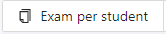
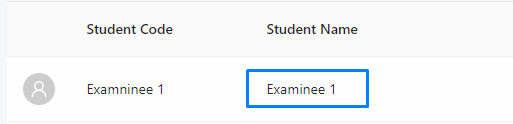
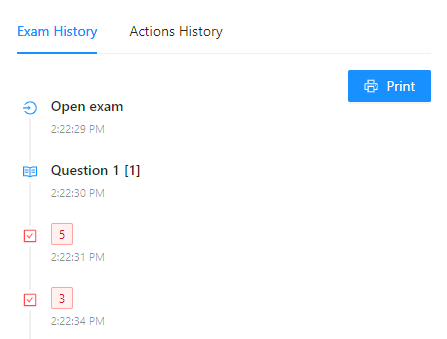
On Quiz > Exam Scoring, when viewing an examinee exam it is now possible to print the details of his exam history. To access this new change, enter an exam (on Exam Scoring) and follow the images below:
[Quiz] Examinee actions history
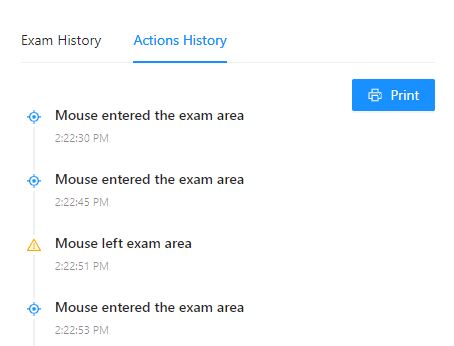
On Quiz > Exam Scoring, when viewing an examinee exam it is now possible to also visualize his interaction with the platform when answering an exam. This is most useful to understand behavioral patterns and single out suspicious actions made while answering the exam. It is also possible to print this records for further use outside the platform. To access this new feature, enter an exam (on Exam Scoring) and follow the images below:
[OSCE] Print Stations
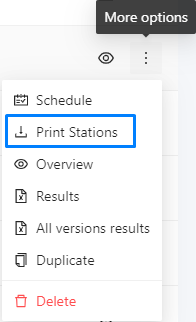
On Osce > Osce Bank it is now possible to print the information regarding the stations of an OSCE (the title and description of a station) for further use outside the platform.
[OSCE-VIVA] Save form changes warning
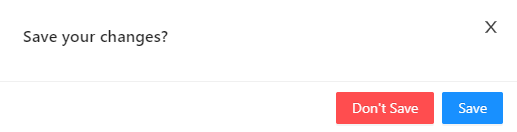
On myOSCE > My Osce, when an examiner tries to leave the exam page after making some change to the current form, a warning will pop reminding him of his unsaved changes, and giving the option to immediately save them and proceed.
[Quiz] Required exam UC
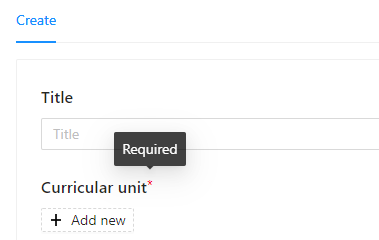
On Quiz > Exam Schedule > Create exam, when creating a new exam is now required to introduce a curricular unit for your exam. This will simplify the further use of all the users of your platform regarding the multiple stages of the exam.
Fix
[General] Multiple visual fixes
- Added a title to multiple pages;

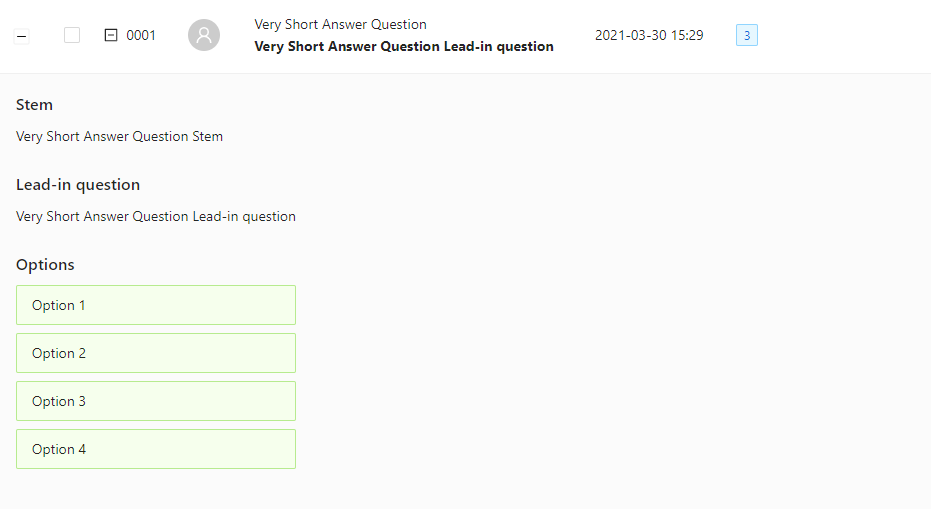
- Fixed the preview of the Very Short Answer Question type, when adding it to an exam;
- Added a “Back” button to multiple pages;

December 17, 2021
New features
[MyQuiz] Highlighter
On MyQuiz > Summative Exam, now the candidates/students are able to mark the questions’ text during the exam. Just select the text, and it will be marked in yellow. To remove the annotation, just click on it.
[Quiz] Question bank filters
On Quiz > Question Bank, when searching questions there is now the possibility to add multiple filters to narrow down your search. For example, it is now possible to search questions by state, type or category.
[OSCE] Layout changes
Correction of some visual bugs (added scroll to students, surveys and stations display), on Osce > Osce Bank > Edit OSCE. Now the survey titles are fully displayed on the station card and the send student feature, which shifts students across circuits is now simplified.
[OSCE] Manual
On Osce > Osce Bank > Edit OSCE, there is a new feature that enables a full customization of an OSCE schedule. After it is generated, it is now possible to shift students around stations and edit their exam date on a specific station.
[OSCE] Stations
On Osce > Osce Bank > Edit OSCE, it is now possible to change/add attachments, forms, title and descriptions to your stations without generating the shifts again. Just edit the station(s) and save.
[OSCE] Print Stations
On Osce > Osce Bank and Osce > Osce Bank > Edit OSCE, added a feature to allow the printing of a PDF displaying the stations title and description on each page of the document.
[Event] Multiple Reviewers
On Events > Edit Event , you can now add multiple reviewers to each candidate. Go to your event overview, click on the 3 dots button -> ‘manage reviewers’ and select how many reviewers you want for that candidate.
[Event] Rollback
On Events > Event Overview > Manage Event, you can now send back the event survey to the candidate, so he can finish it before submiting again. Go to the survey you want to rollback, press the 3 dots button -> rollback and confirm. The candidate will receive an e-mail notifying of this change.
[Quiz] Real time exam events
On Quiz > Exam Schedule > Exam Monitoring, you can now track all your students events. If they are outside the exam area, have minimized the exam, or simply finished the exam. In the monitoring screen you will see on the right, the exam events timeline.
October 29, 2021
New features
[Quiz] Reopen Exam
In the monitor exam screen, it is now possible to reopen a finished candidate/student exam.
[Forms] Table input new type
When creating a Table Input question on a survey, it is now possible to add a new type of input. The Text Area input, which is advised to use when you are expecting long text answers from your candidates/students.
[Events] Table input new type
When creating a Table Input question on a survey, it is now possible to add a new type of input. The Text Area input, which is advised to use when you are expecting long text answers from your candidates/students.
[OSCE] Table input new type
When creating a Table Input question on a survey, it is now possible to add a new type of input. The Text Area input, which is advised to use when you are expecting long text answers from your candidates/students.
[Settings] Manage Consents
Introduced a new sub-module on Settings > Consent Management, where it is possible to see displayed all of the consents created or create new consents to display to your candidates/students. This consent is fully customizable and if set to mandatory, it will be automatically accepted by the users. It is also possible to set a default state for it, which means, when it is prompted to the candidates/students it will be toggled on or off.
[Settings] Manage User Consents
After a new consent is added, every user will be prompted to accept/reject it. To manage all the consents prompted until the moment, access the “Manage my consents” screen on the profile picture. In this screen, all the consents will be displayed, and it is possibly to change their state (Accepted/Rejected) individually. Mandatory consents cannot have their state altered and are by default Accepted.
[Quiz] Second camera surveillance
Create your exams with the new option “Secondary camera”, and establish how many secondary cameras the candidates/students can connect.
In the video surveillance screen you will see the main camera and all the secondary cameras of each candidate/student. You can always request to a candidate/student to add a secondary camera, just press “generate QRcode” above the candidate screen and it will generate a QR code and show it to the candidate.
[MyQuiz] Activate second camera
Add with ease a secondary camera. Just scan the QR code with your phone, tablet or computer and it’s done.
October 22, 2021
New features
[Forms] Dynamic forms
Create your forms to be dynamic with the new conditional logic. In each section you will see the option ‘manage conditional’ where you can add the conditions for that section to appear/disappear, always referred to the previous section. With the new dynamic forms you will be able to:
- Show only relevant questions and hiding irrelevant questions
- Getting testimonials when users give you great feedback
- Improving the experience for survey respondents
[Quiz] Send Email to exam candidates/students
Now you have a easy way to send an email to all the candidates/students in your exam. Just go to the exam bank, press to see more and then on ‘send email’, type the text you want to send and it’s done.
[Quiz] Exam email history
Don’t lose track of what have been sent. See all the exam emails history, what emails have been sent, from who, to whom and witch candidates have open the emails.
October 8, 2021
New features
[Quiz/MyQuiz] Exam Reports by Category
Introduced a new feature where exam reviewers can customize exam reports to their liking. It complements features such as selecting specific categories or UCs, and a minimum number of questions each one must have. It is also possible to consult the report’s history and disable unwanted reports. These reports will be available for download, for the reviewers and candidates/students.
[Events] Candidate History
Quickly see through the candidate history in your Event. The entries displayed are, for example, submissions dates, emails sent, payments done, among others.
[Events] Customized Email
When creating or editing an event, personalize your own email texts for your candidates, in each step.
[Events] Event Preview
Preview an Event through a candidate’s point of view, and see what your candidates see.
[OSCE-VIVA] Candidates/Students Overview
At the same time you have always access to the location of all candidates, if they are online/offline in which room and how long they are in that room.
[OSCE-VIVA] Request Student
A feature that allows examiners to request a candidate to join the room.
[OSCE-VIVA] Student Display
All students attending an exam room are now easily displayed in a list, sorted by start date, making it easy to go through all the candidates.
[General] Reconnection modal
Whenever a user gets disconnected from our server we inform him to reconnect.
[Quiz/MyQuiz] Hotspot Question Zoom
Introduction of a magnifying glass in Hotspot questions (creation and answer) which makes it easier to see where the question creators can draw the polygon, and where the candidates/students can accurately pinpoint their answer. In this way, they can be more confident and precise with their answers.
[Quiz] Exam Review
Allow your candidates/students to review their previous exams without control, or with the control of a token with a configurable expiration date.
Fix
[Quiz/MyQuiz] Image display
Replacement of the component to display image attachments on questions. It displays a full screen image, and has features such as zoom and scroll to the right/left in case of multiple attachments.
[MyQuiz] Kick candidate/student
During examination, if the candidate/student’s exam is finished early by a monitor, he will be promptly kicked off the exam page. In the event the candidate/student’s exam is not automatically submitted after the time for the test expires, he will now be promptly kicked off.
[MyQuiz] Disable back button
During an exam the ability of going back in the browser is now fully disabled. The candidate/student must remain on the exam page.
September 20, 2021
[Quiz] Question type: Hotspot
A new type of question on Quiz > Question Bank > Add Item, where you upload an image and draw a polygon which concerns the area of answer accepted. The candidate/student draws a point on the image, if it’s within the area, the answer is correct.
[Quiz] Question type: Very Short
A new type of question on Quiz > Question Bank > Add Item, where you can add multiple options of correct answers. The candidate/student answer is matched against the list of correct options. If it is contained in it, the answer is correct.
[Quiz] Question type: Uncued Multiple Choice
A new type of question on Quiz > Question Bank > Add Item, where you assert a correct option and multiple distractors (incorrect options). The candidate/student types his answer and as it auto completes, the options list is narrowed and an answer is picked. If the option picked is the correct option asserted, the answer is correct.
[Quiz] Question type: Uncued Multiple Choice with Help
A new type of question on Quiz > Question Bank > Add Item, where you assert a correct option and multiple distractors (incorrect options). You can then pick some of these options to work as Multiple Choice options. The candidate/student answers in the same fashion as the Uncued Multiple Choice, although he can choose an Help feature. This converts the question in a Multiple Choice with the options being the previously picked. If he chooses the correct option, the answer is correct.
[Quiz] Pin an option in Multiple Choice questions
A new feature on Quiz > Question Bank > Add Item > Multiple Choice where you can select an option position to be permanently fixed when presented in an exam. Particularly useful when using an options shuffle setting, and it’s necessary to have a fixed option, for logical reasons. For example, in a “All the above options” or “None of the above options” situation, this option needs to be pinned to the bottom.
[Quiz] Swap question
A new feature on Quiz > Exam Schedule> Create/Edit where you can swap a previously picked question for another one, maintaining its order.
[Quiz] Order Questions
A new feature on Quiz > Exam Schedule> Create/Edit where you can move around the order of the questions (Up or Down).
[Quiz] Create Exam: Add Form
A new feature on Quiz > Exam Schedule> Create/Edit > Schedule where you can attach a survey to the end of the exam. After the termination of the exam, the candidate/student will be prompted to fill the attached form.
[Quiz] Activate Review Requests
A new feature on Quiz > Exam Schedule> Create/Edit > Schedule which allows for candidates/students to ask for a review of a question, if checked.
[Quiz] Multiple Check-in
A new feature on Quiz > Check in which allows for multiple candidates/students to be admitted to the check-in room. Just select the desired students and proceed.
[Quiz] Proof of Presence
A new feature on Quiz > Exam Scoring> which allows for candidates/students to download a document confirming their presence on the exam. After checking this option, the document will be available on myQuiz > Previous Exams on the respective exam.
[Quiz] Individual Feedback
A new feature on Quiz > Exam Scoring> which allows candidates/students to consult their performance on an exam. The statistics will be available on myQuiz > Previous Exams.
[Quiz] Change Multiple Choice correct option
A new feature on Quiz > Exam Scoring> which allows you to change the correct option of a Multiple Choice question for another. As the question is updated, all the candidates/students scores are also updated.
[Forms] Question type: Attachment
A new type of question on Forms > Form Bank > Add Form where you can set as an answer to a survey question, an attachment. When answering an attachment question, the candidate/student can either upload a pdf file or an image.
[Forms] Question type: Date
A new type of question on Forms > Form Bank > Add Form where you can set as an answer to a survey question, a date. When answering a date question, the candidate/student will be prompted a calendar, and will be able to choose the desired date.
[Forms] Question type: Table
A new type of question on Forms > Form Bank > Add Form where you can set as an answer to a survey question, multiple inputs. The table question has three possible inputs: a date, a string and number. When answering a table question, the candidate/student can select a date from a calendar, to answer the date input, type some text, to answer the string input and select a number, to answer the number input.
[Forms] Multiple choice options limit
Survey multiple choice questions have been updated, and it’s now possible to set a minimum and maximum number of options selected.
[Forms] Order Questions and Sections
A new feature on Forms > Form Bank > Add Form where it’s possible to rearrange the order of questions and sections (Up or Down).
[Forms] Check form details
A new page on Forms > Form Bank > View form details where it is possible to get the answerable link to the form, to share with other users and consult the status of the survey answers.
[Events]
A new module Events where it is possible to create a new type of process called event. This type enables an overall management of aspects related to the concretization of an event. Such as the creation of application forms, correction and feedback to candidates, automatic payments through paypal and carrying out exams. To achieve this, an user needs to create a flow composed by steps and actions. A step can be described as a stage of the process, and each step is composed by actions. Some of the aspects described above can function as actions. Due to this flexibility, it is possible to set different kinds of flows, adjusted to the user needs.
[myEvents]
A new module myEvents where it is possible for candidates/students to manage their end of the event process. Such as filling in the application forms, correct any possible mistakes, pay the fees, consult their process state and perform the written/oral exam.
[OSCE-VIVA]
A new module Osce where it is possible to create oral exams between examiners and candidates/students, supported by our live proctoring. When creating this oral exam it’s necessary to set a date, add shifts, stations and students. Then proceed to add attachments and surveys to each station. This step is important, as it will come into play later when performing the exam. After all is set, let our platform generate the schedule for you. When the time comes, the examiners can enter a room and open it for the student/candidate, he will be prompted in. In this room there will be a live feed of the examiner(s) and the candidate/student, and any attachment chosen will be displayed on both ends, facilitating the communication between both parties. A survey will also be presented to the examiner, so he can proceed to evaluate the candidate/student performance.
[myOSCE]
A new module myOsce where it is possible for candidates/students to check their upcoming Osce exams (oral exams) and access the exam room when it is opened to them. After entering the room, the users will be displayed a live feed between them and the examiner(s) and any attachment chosen.
[myQuiz] PRAC Autosave
A new feature in Open Answer type of question, where the answer is automatically saved after a candidate/student stops typing. A save button is also present, if the candidate/student wishes to manually save. There is also a feature of answer history, where there are displayed different “checkpoints” of the answer. Each autosave and manual save creates a “checkpoint” and the candidate/student can revert his answer to any state he wishes.
[myQuiz] Check-in waiting room
A new feature of myQuiz > Summative Exams where after the candidate/student is approved to do the exam (after the Check-in), he is redirected to a waiting page where he must remain until the exam starts. While he is on the waiting page, a timer is shown with the remaining time until the beginning of the exam.